
How to Install WebOS

Installation Guide

Défiler

Your How to Guide

1. Initial Display Configuration

Turn on the LG webOS screen.

When prompted, choose the appropriate Language, Region/Continent, Country, and Time Zone.

Confirm the selections by choosing OK.


2. Setting Up the SI Server

Press the Settings button on the remote (the gear/cog icon).

Go to EZ SettingsSI Server Settings.

Adjust the following options:

  • Application Launch Mode: set to Local
  • Fully Qualified Domain Name: switch to On
  • Application Type: Set to IPK
  • URL: enter http://igotcha.co/webos4.ipk
  • Local Application Upgrade: set to Remote

Once complete, select Confirm, then OK.

Restart the display by powering it off and back on.


3. Configuring the Application

After the reboot, the iGotcha Signage app will automatically open.

Review and adjust these settings:

  • Ensure the Time Zone is correct.
  • Make sure the server URL is set to: http://igotchasignage.com (if you are using another server enter it here).
  • Enter your Player ID
  • Choose the required Screen Orientation.
  • Turn Remote Firmware Updates on or off, depending on your environment.

Scroll to the bottom and select Save to apply all settings.

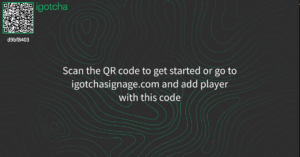
  • A QR code will appear on screen (similar to the picture below).
    • Note: Do not use the QR code in the actual picture below.

D9bf8403_qr_code_for_gaming_and_media_promotion.

How to Create Your Account and Add Your Screen

    1. Scan the QR Code:
      Use your phone’s photo app to scan the QR code. This will open the account setup page in your phone’s web browser.

    2. Enter Your Organization Details:

      • Input your organization’s name.

      • Enter your full name.

      • Enter your email address.

    3. Create Your Account:
      Click the Create button. You will receive a confirmation email containing a temporary password.

    4. Log In for the First Time:

      • Return to the login page.

      • Enter your email and the temporary password from the confirmation email.

      • You will receive a two-factor authentication (2FA) code via email. Enter this code in the provided field to complete the login process.

Contact us